

Frequently Asked Questions
Can I create an account on the My Security Benefit app?
Individuals who have a retirement account with Security Benefit must create an account on SecurityBenefit.com prior to accessing the My Security Benefit app.
- Read More
Individuals who have a retirement account with Security Benefit must create an account on SecurityBenefit.com prior to accessing the My Security Benefit app.
To create an account, click “Register Your Account Online”, follow the prompts to create a profile, set up your security questions and two-factor authentication. Usernames must have at least eight characters (no special characters), and passwords must contain eight characters including at least one number, one lowercase letter, one uppercase letter, and doesn't contain your username.
Once you've established your account, you will use the same username and password to access the My Security Benefit app.
I'm an individual. How do I register for an online account on SecurityBenefit.com?
Navigate to SecurityBenefit.com and click Register within the upper menu.
- Read More
Navigate to SecurityBenefit.com and click Register within the upper menu.
On the next screen, select which type of website user you are to begin the registration process.

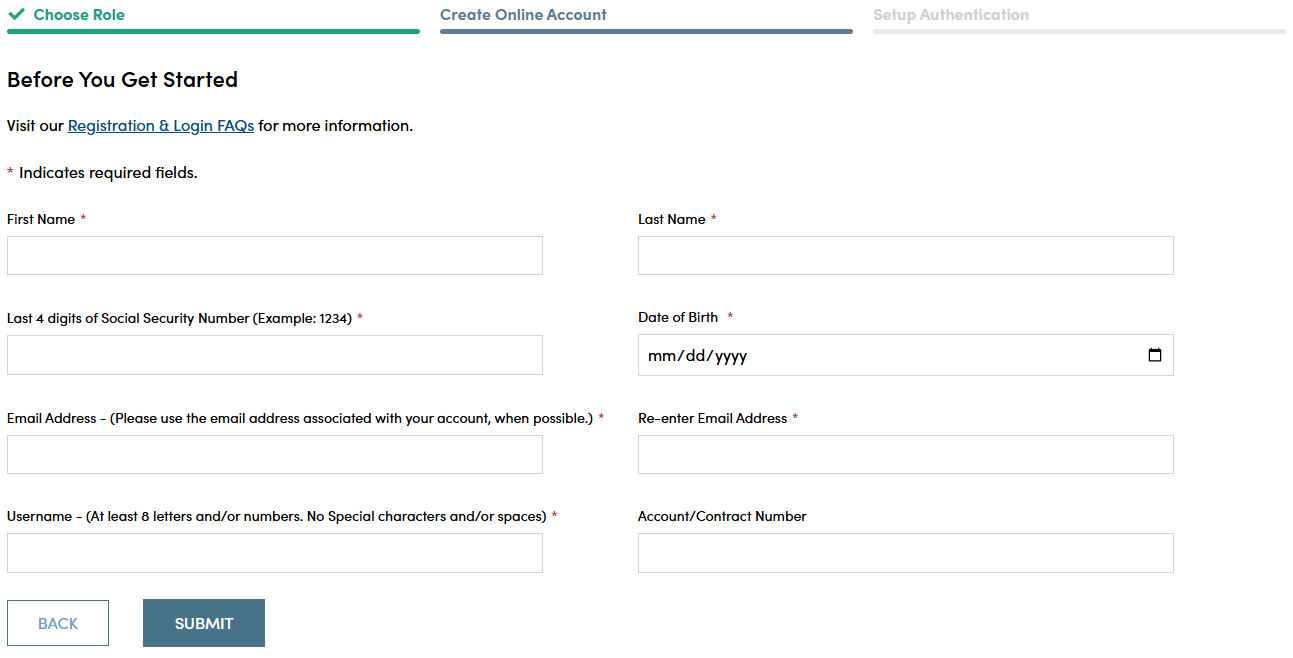
Once your role has been chosen, you’ll be asked to fill in all required fields.
When you have successfully entered information into all required fields, the registration process is almost complete and you should see this screen. If you need to, you can navigate away from this page.

Check your email account used in the initial registration process for a confirmation email (the email will come from [email protected]). When it arrives, you will have 7 days to open it and click the link to finalize the account registration process, which includes:
- Setting up a password,
- Setting up security questions, and
- Entering a cell phone and/or landline phone number for multi-factor authentication.

Once you click "Complete my Registration", you will be asked to create a password. Passwords must contain:
- At least 12 characters
- At least 1 number
- At least 1 lowercase letter
- At least 1 uppercase letter
- At least 1 special character
- Does not contain part of the username
You will also be asked to choose a recovery question in the event of needing to reset a password or gain access when you have forgotten a password.
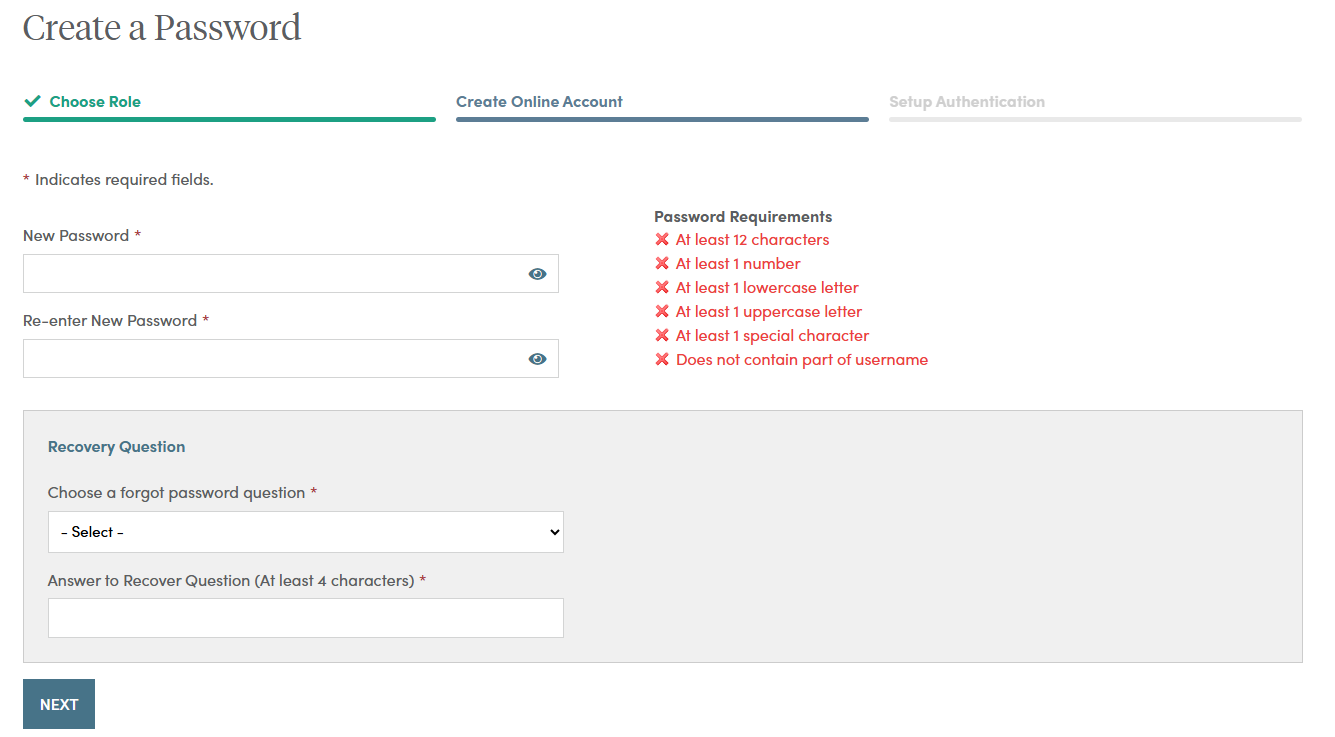
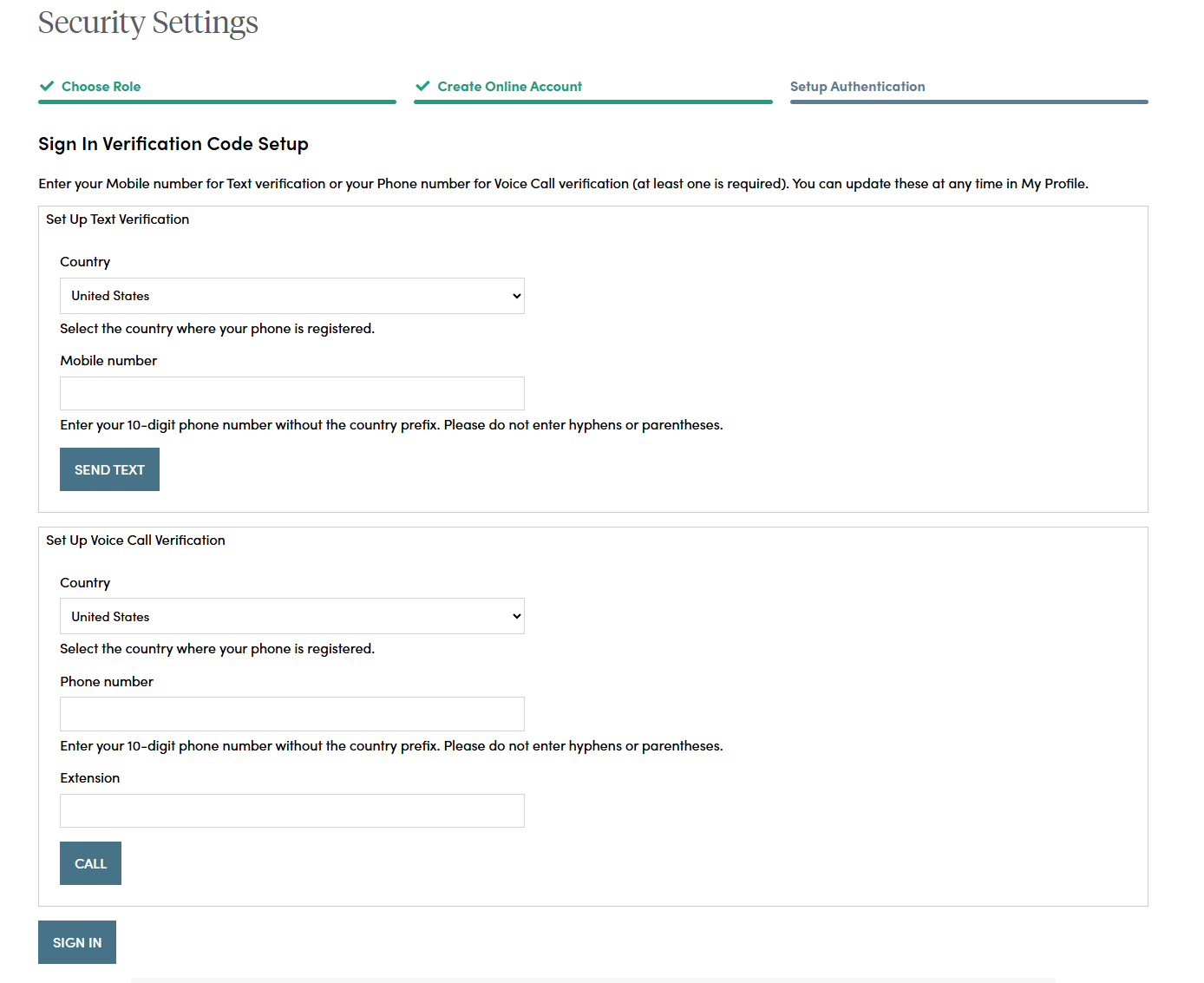
After successfully establishing a password and setting a recovery question, you will need to set up additional security verification numbers, either a text message or a voice call with verification code to any number you choose.
For text verification, enter your 10-digit cell phone number without the country prefix. Please do not enter hyphens or parentheses. Click on the “Send Text” button to verify the device. Please allow up to 30 seconds to receive the text.
To set up voice call verification, enter your 10-digit phone number without the country prefix. Please do not enter hyphens or parentheses. Click on the “Call” button to verify the phone number. Please allow a few minutes to receive your voice call.
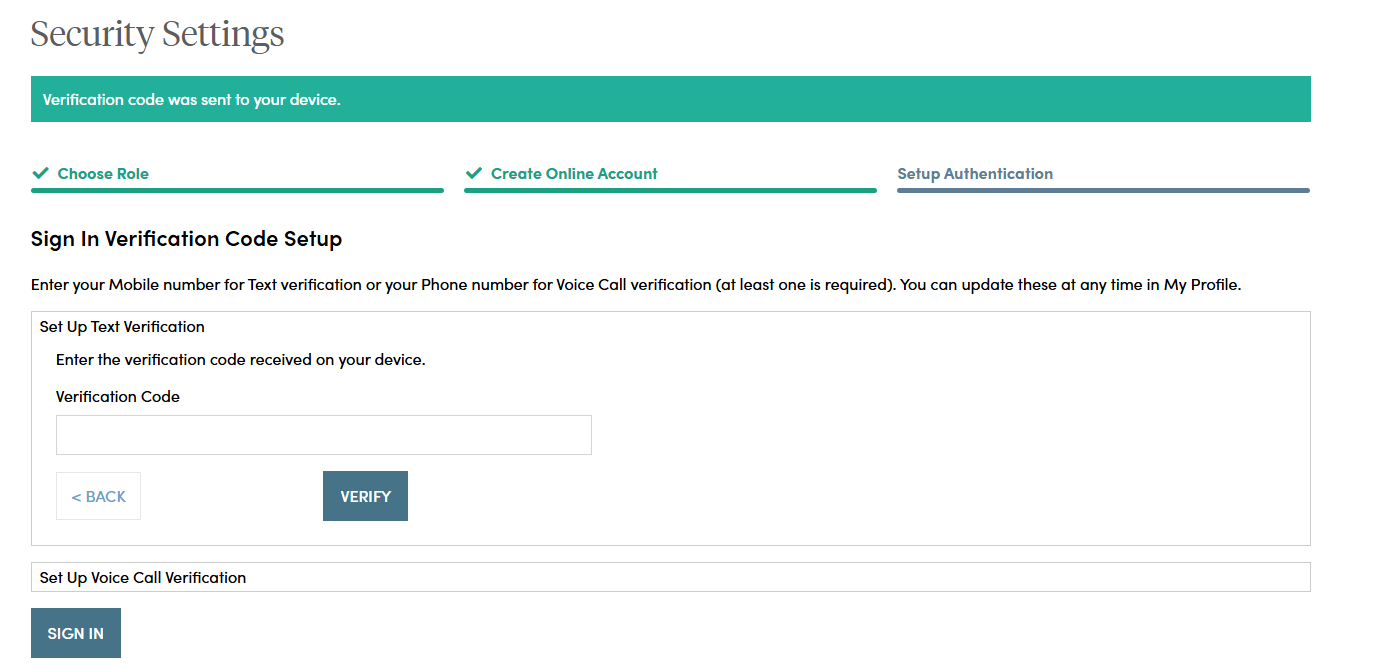
If you selected text verification, this screen will appear and you can enter the verification code sent via SMS to your cell phone. Enter the code and click on the “Verify” button. Once verified, your cell phone number will allow you to receive a verification code to access the site if you are signing in from a new device, or signing in one year or more after your last sign in.
If you selected voice call verification, this screen will appear and you can enter the verification code received via a voice call to the number you entered. Enter the code and click on the “Verify” button. Once verified, your phone number will allow you to receive a verification code via voice call to access the site if you are signing in from a new device, or signing in one year or more after your last sign in.
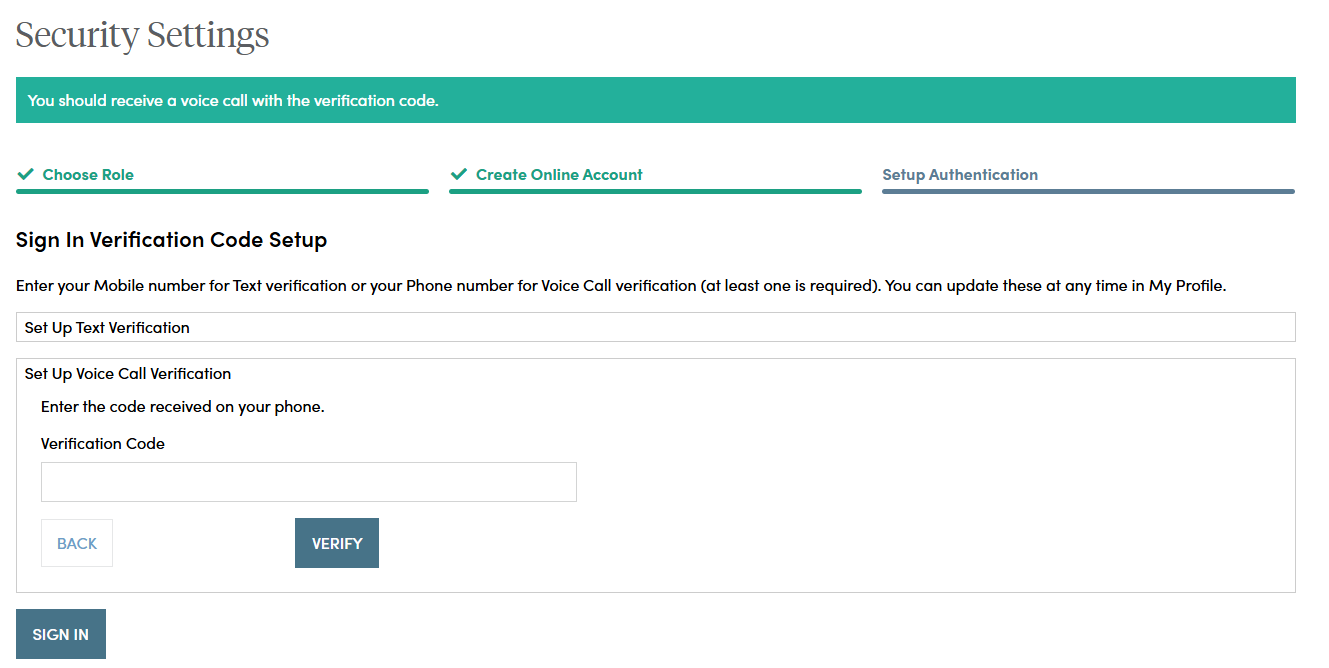
When you have entered the verification code, this screen will appear which confirms the number that has been established for your profile. Should you wish to change a phone number, simply sign in to your account, navigate to My Profile in the upper right navigation and edit your profile information.
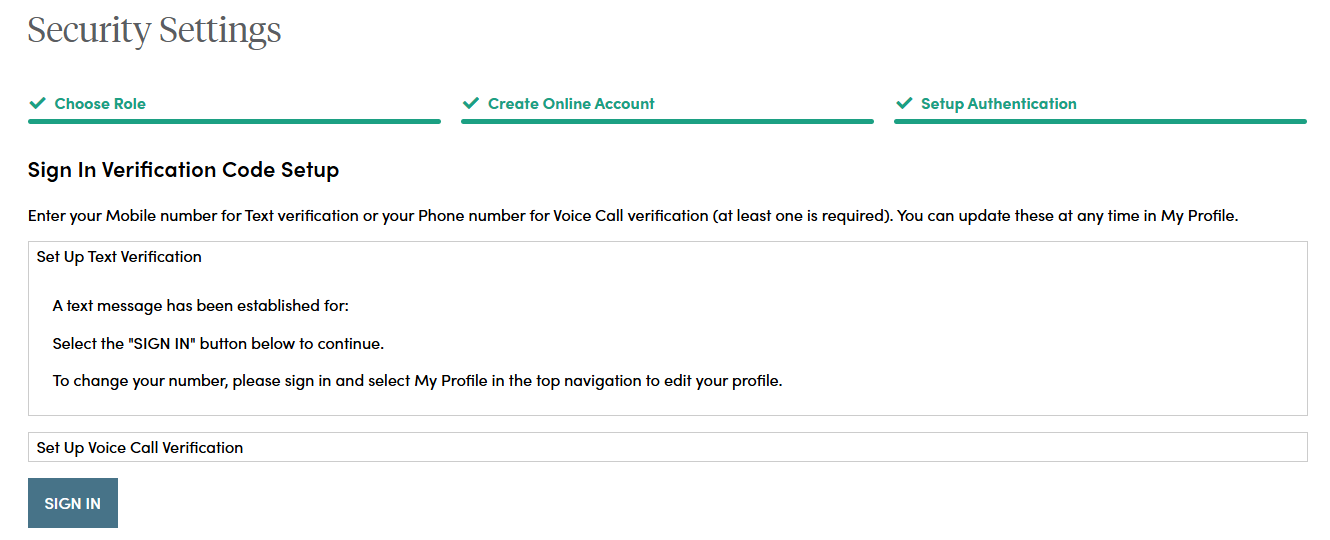
Your account set up is now complete. By clicking the "Sign In" button you can enter your credentials and access the website.
If you should have any questions or encounter any issues in registering, please call our Service Center at 800.888.2461 from 8 a.m. to 7 p.m. (Eastern Time), Monday through Friday.
Where can I find information on the annuity I purchased?
Contracts are distributed through the United States mail service for annuity products. To view your account information, Click on Sign In from the top navigation.
- Read More
Contracts are distributed through the United States mail service for annuity products. To view your account information, Click on Sign In from the top navigation.
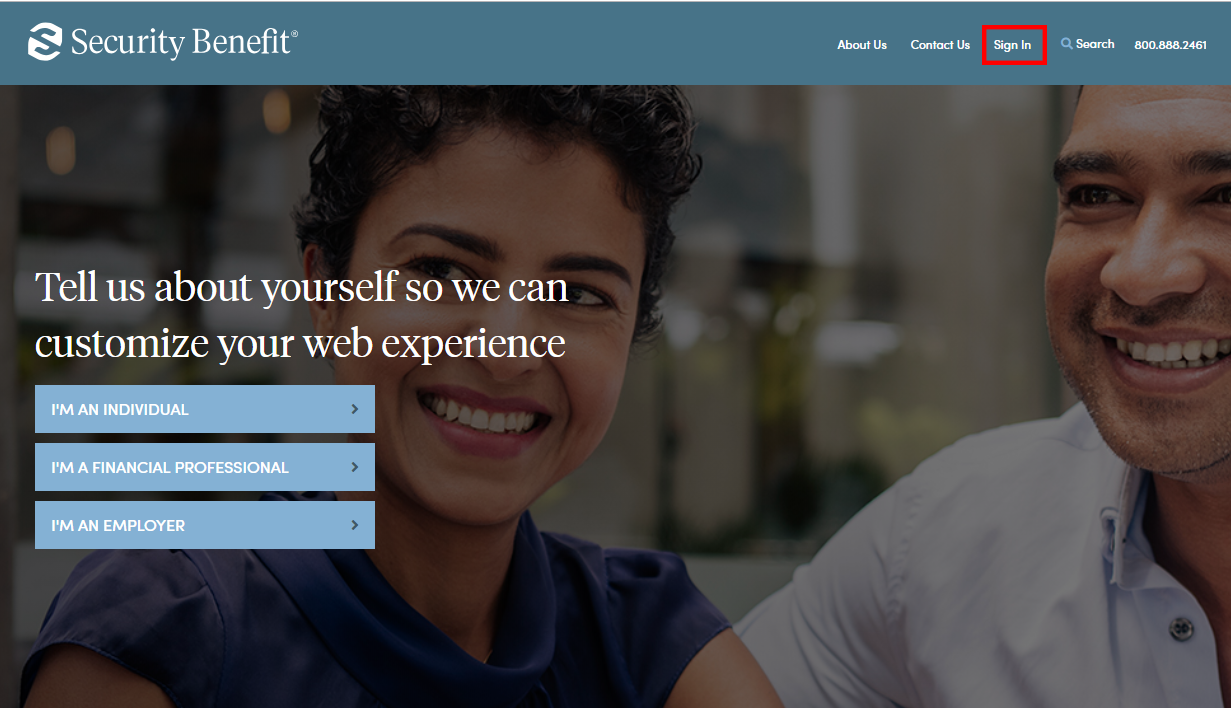
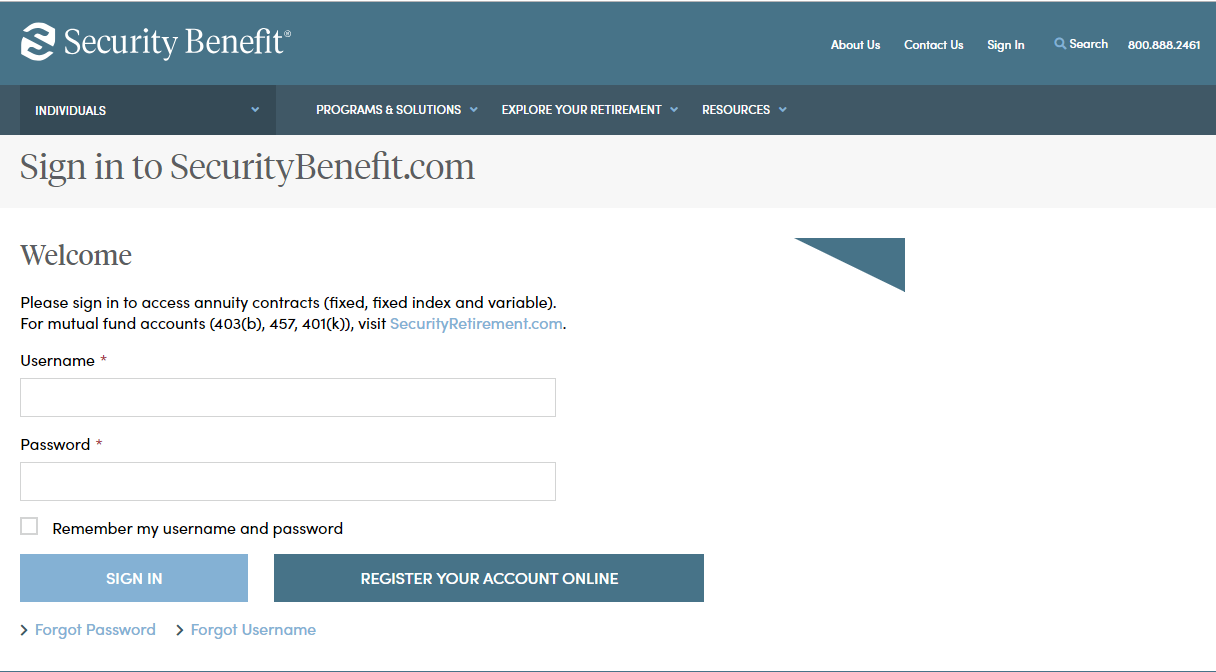
Complete the Sign In process by entering your registered Username and Password.
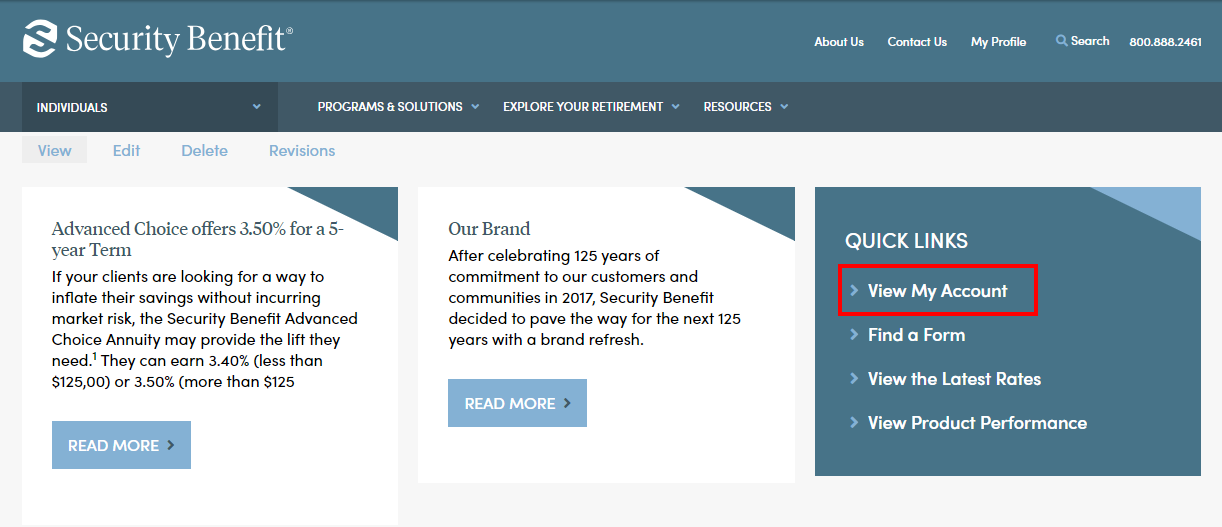
Upon successful sign in, your contract is available by clicking on View My Account located within the Quick Links box.
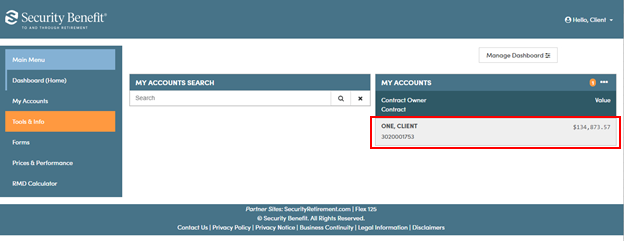
A dashboard representing the business will display. If you have multiple accounts, they can be searched upon by Account Number. Clicking on the Account within My Account, will display Account details.
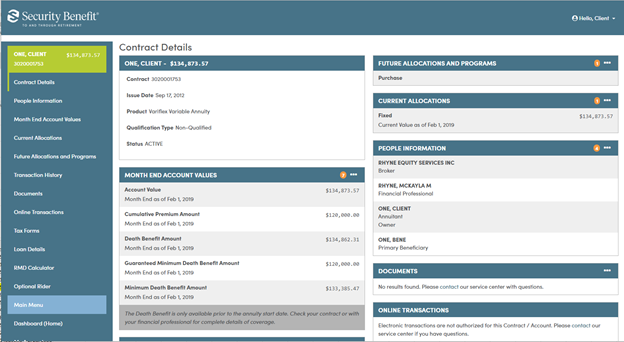
My Account data will be displayed through organized information cards. Each card provides a small snapshot of data. Most cards can be expanded by clicking on the header title or selecting the applicable Left Navigation menu to display detailed data.
For additional questions, please contact your financial professional or our Service Center at 785.438.3000 or 800.888.2461, 8 a.m. to 7 p.m. (Eastern Time), Monday through Friday.
Where do I go to set up an account?
You need to set up your account on SecurityBenefit.com prior to accessing the My Security Benefit app. After that, you'll use that Username and Password to access your information with the My Security Benefit app.
- Read More
You need to set up your account on SecurityBenefit.com prior to accessing the My Security Benefit app. After that, you'll use that Username and Password to access your information with the My Security Benefit app.